

Presenter View in PowerPoint – how this can aid you when you are presenting your presentations?
 This week’s hint and tip is looking at how you can use the presenter view in PowerPoint when you are presenting your presentations. We do cover this on our Basic PowerPoint training course but we also decided to do a hint and tip on it. We are going to go through it now below.
Running a presentation
There are several ways to run your slide show presentation, some being:
- Pressing F5
- Clicking on the small slide show button (bottom right corner of screen)
- The options on the slide show tab
The option you choose will depend on how you want to start off your presentation. Once you start it, there are then further options for how you progress through it. We are going through this now below.
Slide show view
Your screen will look slightly different depending on how many screens you have linked up. If you just have the one screen (a laptop screen or a desktop monitor) then it will look like the print screen shot below.

Here you can see just the presentation slide itself. At the bottom of the screen you can see buttons when you hover your mouse over it. These buttons give you other options available for use during your presentation. You can also still use your right-hand mouse click for options too. You can run your presentation in this view even if you have two screens if you prefer.
Presenter view
However, if you have a monitor plugged into a laptop/desktop screen, you will get two different screens. The monitor screen will look like the slideshow one above and then the print screen below seen on your laptop/desktop screen. This screen on your laptop/desktop is called presenter view and can be seen below.
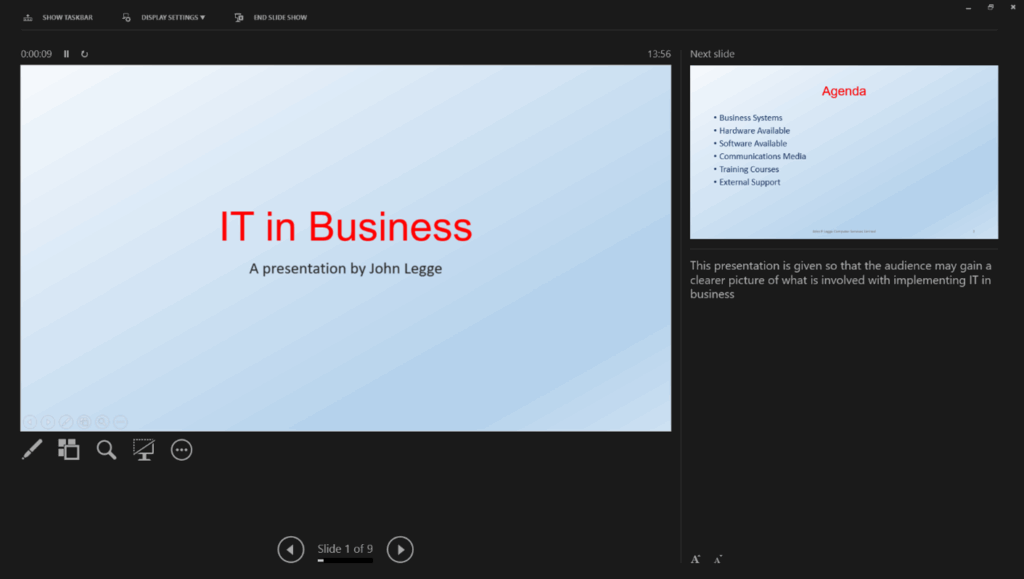
This second screen gives you the same options as the slide show view, but it gives you a bit more of a detailed view. This is optimised for presenting on a projector as it gives the presenter more options without interfering with the appearance of the presentation itself.
This two-way view can be altered through the display settings option at the top. Here you can choose to duplicate the screen so that both screens will look like the slide show view.
The video below shows you what the presenter view is in PowerPoint and how it can be used in your presentations. The presenter view is a great aid that can be used when you are presenting.
Take a look below at the video to find out more and then try them out on your own computer!
We hope you have enjoyed this hint and tip on the presenter view in PowerPoint. Why not take a look at our previous video hint and tip on how to insert a chart into your Word documents?